The right ai filmmaking tools cover visual planning, controlled shot generation, and timeline editing around your finished song. Google’s Flow filmmaking tool supports AI scene creation, but a full-song video still needs an editorial plan. Choose tools by production role, then test them against the shots your song actually requires.
- Start with a reference-image tool, a motion generator, and a timeline editor. Add specialist tools only when a planned shot requires them.
- Compare generators using the same approved reference and camera instruction. Judge usable footage after trimming, not the most impressive preview.
- Build an animatic against the finished track before generating motion. This reveals missing coverage without spending generation credits.
- Check commercial terms and input permissions before committing to a tool. A paid subscription does not automatically clear every release right.
Which ai filmmaking tools does each production stage require?
A workable stack gives each application a specific job. Planning defines the visual world. Generators supply shots. The editor shapes those shots around the song.
Buy the smallest stack that can complete your treatment. A treatment is the short creative document describing what the viewer sees and how that changes across the track. Your existing writing and presentation software may handle planning perfectly well.
| Production stage | Tool category and examples to evaluate | What must work before you commit |
|---|---|---|
| Concept development | Writing assistant, such as ChatGPT, plus a brief document | Turns the song’s emotional arc into a shootable concept without inventing requirements |
| Moodboards and storyboards | Reference board, presentation software, or planning tools such as LTX Studio | Keeps approved references together and maps shots to song sections |
| Text-to-image | Image generator, such as Adobe Firefly or Midjourney | Produces reference frames with repeatable wardrobe and lighting |
| Image-to-video | Motion generator, such as Flow or Runway | Animates an approved frame while preserving the details that matter |
| Text-to-video | Motion generator with text prompting | Produces useful atmospheric footage when exact identity matching is less critical |
| Lip sync | Dedicated lip-sync feature or application | Matches the actual vocal excerpt without distracting mouth or face changes |
| Upscaling | Dedicated enhancement tool or supported editor feature | Improves delivery resolution without damaging faces or textures |
| Frame interpolation | Interpolation tool or optical-flow feature | Creates acceptable intermediate frames when slowing footage or converting frame rates |
| Final assembly | Timeline editor, such as DaVinci Resolve or Adobe Premiere | Supports precise music cuts, color matching, and separate exports |
These are candidates to evaluate, not a shopping list. Features vary by model and subscription tier, so check the actual interface available to you rather than assuming every advertised control is included.
For recognizable characters, image-to-video is usually the stronger starting point because it anchors motion to an approved frame. Text-to-video suits shots where atmosphere matters more than exact continuity. Neither route guarantees that an artist’s face will remain stable throughout a performance.
Adobe’s Firefly product information covers its image and video generation offerings, but selection still depends on your references and required controls. Keep the treatment beside the interface: if a feature cannot serve a planned shot, it does not earn a place in the stack.
Before generating anything, use a music-video workflow from treatment to final master to define coverage across the whole song. A striking chorus shot cannot carry an unfinished verse.
How should you test motion and continuity?
Test a short sequence that represents the hardest recurring requirement in your video. A single attractive clip cannot show whether a tool will preserve a character across cuts.
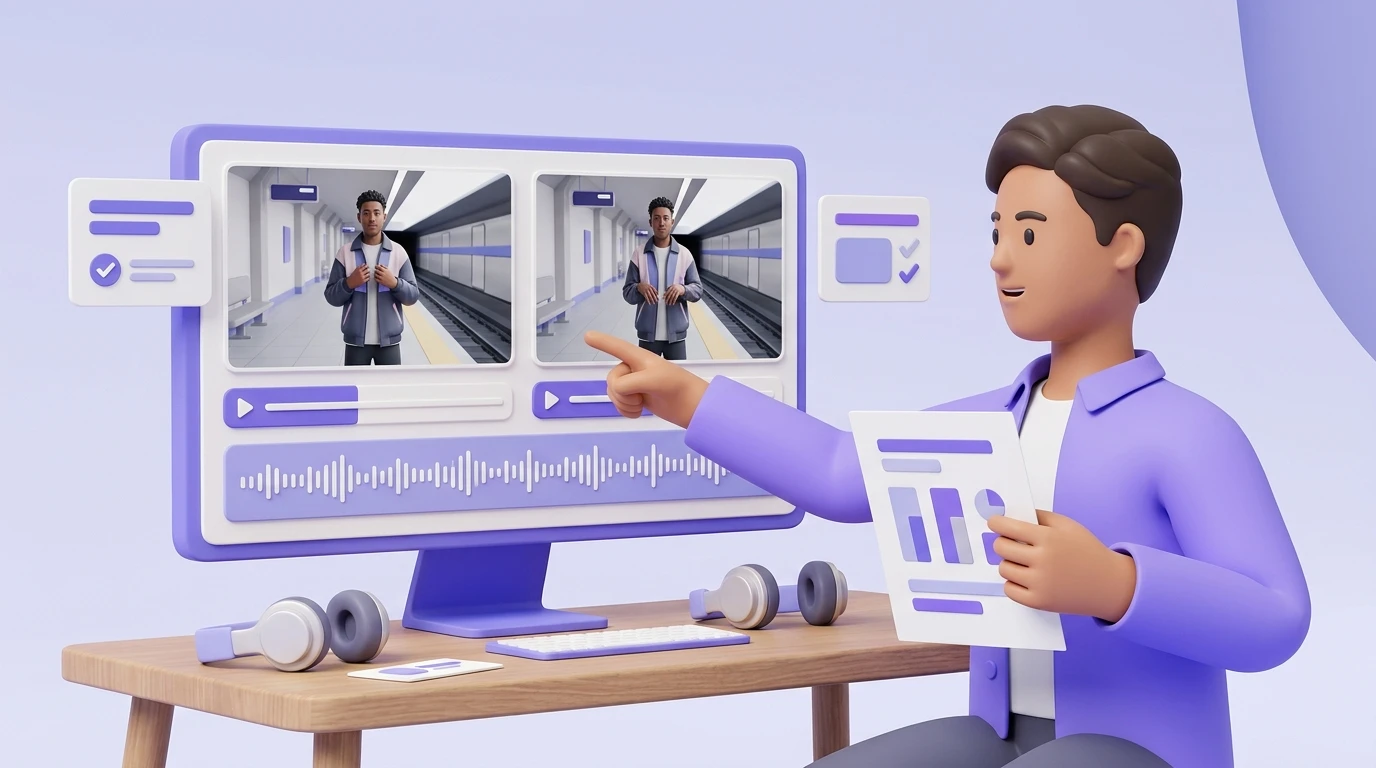
For a hypothetical single set on an empty train platform, the test could include a restrained push toward the artist followed by a side-angle shot. Use the same approved wardrobe reference in both. The question is whether the shots belong to the same scene.
| Test | Keep fixed | Change or inspect | A usable result |
|---|---|---|---|
| Camera movement | Reference frame and subject action | Request a simple push or pan | Camera movement follows the instruction without distorting the subject |
| Character continuity | Approved character reference and wardrobe | Change the angle | Distinctive features and clothing remain recognizable |
| Scene continuity | Location references and lighting brief | Generate the adjoining shot | Background details remain compatible enough to cut together |
| Editorial usefulness | Intended place in the song | Trim the clip to its strongest section | The remaining footage holds through the required musical phrase |
| Social framing | Approved subject and action | Preview a vertical crop | Essential movement stays visible without awkward reframing |
Use the same brief across candidate tools. Then vary one instruction at a time within each tool. Changing the reference and camera movement together makes it hard to identify what caused the improvement.
Record the exact settings behind every usable shot. Keep the model version, prompt revision, and uploaded references together. Record a seed if the tool exposes one, but treat it as an experimental control rather than an identity lock: seeds are not interchangeable across providers, and repeatability can change with model updates.
A simple shot log is enough:
Shot ID:
Song section:
Intended edit position:
Prompt revision:
Model and version:
Reference filenames:
Seed, if available:
Camera instruction:
Generation settings:
Credits spent:
Usable portion:
Reason accepted or rejected:
Test subject movement separately from camera movement. If a walking performance breaks facial consistency, a restrained pose with camera motion may serve the same musical passage more reliably.
How do you combine generators with a human edit?
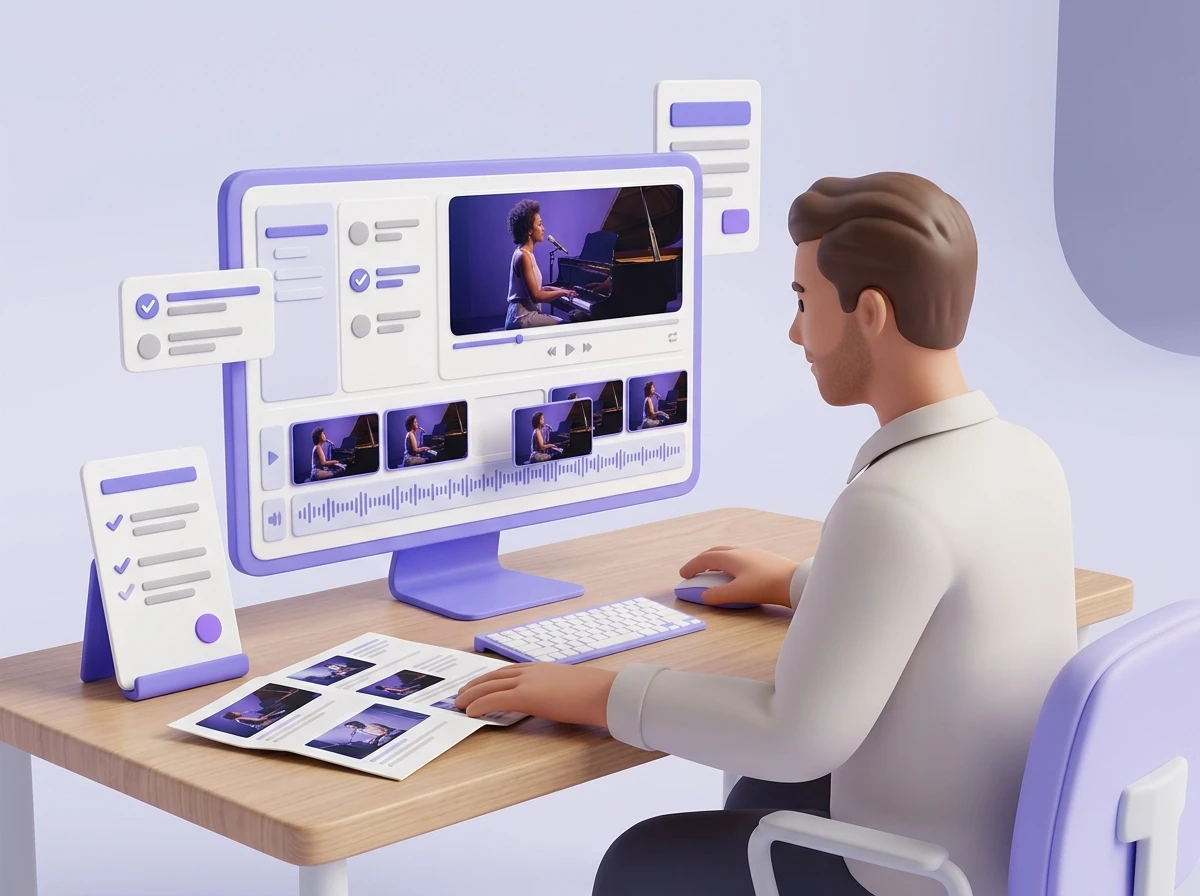
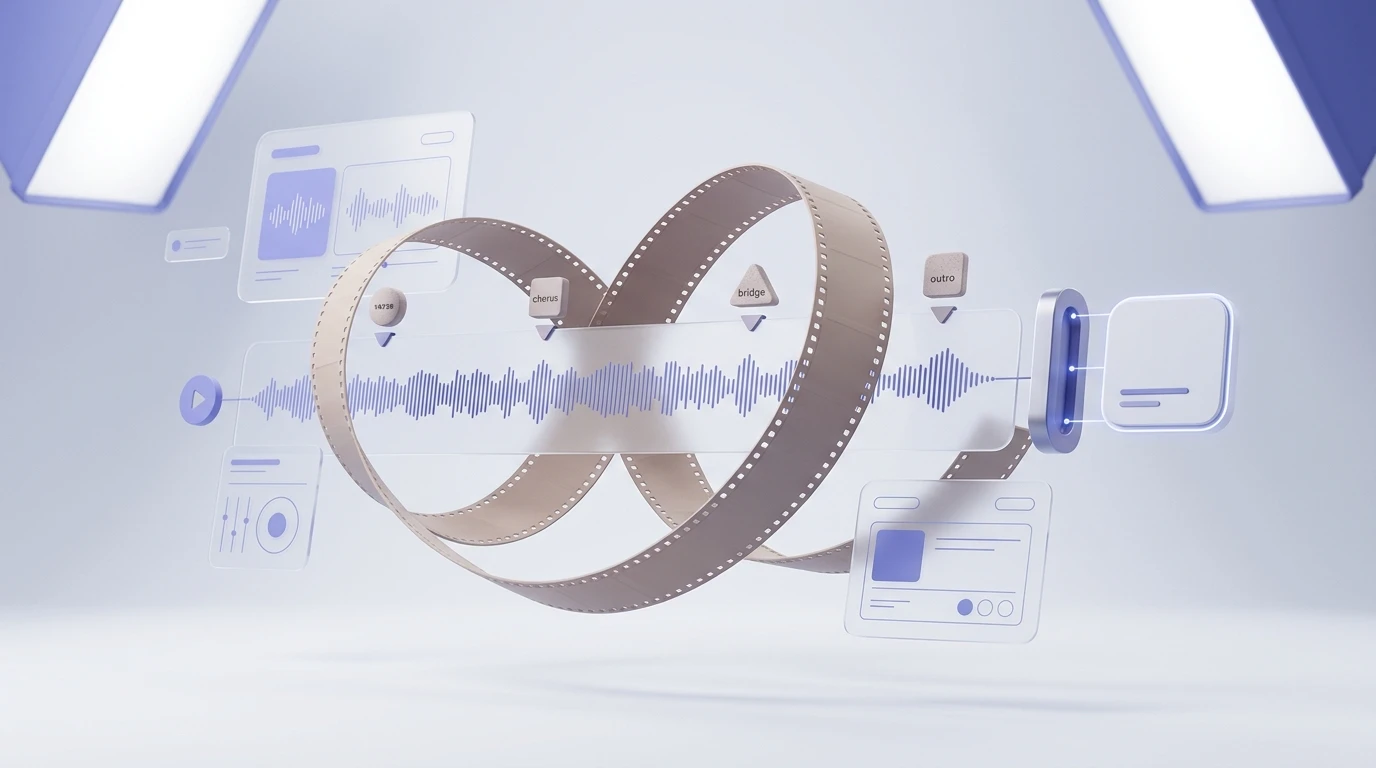
A full-song video needs a timeline built around the finished recording. Generate footage to fill that timeline, then refine the edit as usable shots arrive.
At SongTrailer, one creative director owns concept through final edit for human-directed, AI-assisted full-song videos. Our AI music video workflow for artists keeps those creative decisions connected rather than treating each generated scene as a separate project.
Follow this production order:
- Lock the audio and delivery brief. Use the finished song, confirm the intended master and social formats, and mark musical changes that need visual emphasis.
- Write the treatment and reference rules. Define the recurring subject, establish the location, and decide what can change as the song develops. Record wardrobe and lighting rules explicitly.
- Build an animatic. Place storyboard frames on the song’s timeline as a rough still-frame edit. Adjust shot holds until the visual pacing works through the entire track.
- Generate the dependency shots first. Produce the shots that establish your character and location before less specific inserts. Approve those references before expanding coverage.
- Add performance treatments selectively. If a shot needs lip sync, use the precise vocal excerpt and inspect it against the finished mix. Generate replacements when mouth movement or facial shape distracts from the performance.
- Finish in the editor. Select usable portions, match adjacent shots, and refine cuts against musical phrases. Apply enhancement only to footage that has earned a place in the edit.
Keep the original song as the audio master. Mute generated sound unless it is intentionally part of the treatment and cleared for use.
Cut to phrases, not automatically to every beat. A sustained verse may need a held image; a chorus entrance may justify a sharper visual change. Constant cutting can make a cinematic concept feel like a collection of unrelated samples.
Upscaling belongs late in this process. It cannot repair an incorrect face or an incoherent scene. Frame interpolation can smooth slowed motion, but synthetic intermediate frames may introduce errors around hands, hair, or fast-moving edges.
Which tool mistakes waste renders and break consistency?
The most expensive mistake is expanding generation before approving a repeatable visual approach. Every new scene then inherits unresolved choices.
A loose prompt such as “cinematic artist performance” leaves the model to reinvent the production. Replace broad style requests with a shot brief that specifies the approved reference, the intended movement, and what must remain unchanged. Save each prompt revision instead of overwriting it.
Switching models midway through a recurring scene creates another risk. Skin texture may change. Lighting may shift. Test the new model against the approved sequence before using it for replacement coverage.
Measure cost against footage that survives the edit. Divide total generation and enhancement spend by the usable duration retained in the timeline. Include rejected renders and extensions in that spend; downloaded footage that never makes the cut contributes no coverage.
Generation credits also need a practical check before purchase. Confirm whether previews consume credits, how extensions are charged, whether unused credits expire, and whether the required model sits behind a higher plan. A low subscription price tells you little about the cost of completing a song. The difference between a credit bill and a finished video is walked through with published figures in the 2026 cost guide.
If the release date is close, simplify the treatment before chasing uncertain features. Fewer recurring environments reduce continuity problems, while planned inserts provide coverage when a performance shot fails.
When comparing a managed production quote with a DIY stack, use the same scope. A guide to choosing a video production company can help you compare direction and deliverables rather than a subscription price against a finished production.
Check commercial rights before committing to a tool
Commercial permission is a production requirement. Check the terms that apply to your actual plan before uploading references or generating release footage.
Confirm that you can use the outputs commercially and deliver them to the artist or label. Review restrictions on uploaded likenesses, watermark removal, and confidential material. Save a dated copy of the applicable terms with the project records.
You also need permission for the inputs. Clear the song’s use in the video, obtain appropriate consent for recognizable people, and use references you are entitled to upload. A generator’s commercial license does not clear someone else’s music or likeness.
Permission to use an output and copyright protection are separate questions. The U.S. Copyright Office’s copyright and artificial intelligence guidance explains the role of human authorship in protecting AI-assisted works. Human-authored editing or other contributions may qualify for protection, while purely generated material may not; rules differ by jurisdiction.
For a label delivery, document who receives the finished files and which usage rights accompany them. Resolve uncertainty before the release deadline.
Prepare a full-song master and social adaptation
The primary master and social adaptation should share a visual identity, but each needs its own framing review. A landscape composition can lose the artist’s hands or a key background action when cropped vertically.
For a practical delivery brief, you might choose a landscape master and a portrait adaptation. These are project choices, not universal requirements. Approve the intended formats before generation so important action stays within a crop-safe area.
Preview the social framing during the animatic. Where cropping would remove the meaning of a shot, plan a dedicated composition instead of hoping an automatic reframing tool can recover it later.
Keep the edit’s frame rate consistent and inspect any converted footage. YouTube’s recommended upload encoding settings recommend uploading at the same frame rate used during recording and document supported export settings. Use the destination platform’s current guidance for the actual delivery.
Watch every export from start to finish. Check the audio opening and ending, look for sudden color shifts, and confirm that no temporary frames or watermarks remain. Review the portrait version on a phone as well as a monitor.
Frequently Asked Questions
Which AI tool is best for filmmaking? The best choice depends on the shots you need. For an artist-led music video, prioritize reference control and usable motion, then keep a timeline editor responsible for the finished song.
Can ChatGPT make a movie? ChatGPT can help develop a treatment, organize a shot list, and refine prompts. A finished movie or music video also needs visual production, sound work, and an edit; available integrations determine how much can happen within one interface.
Is it illegal to use AI to make movies? Using AI is not inherently illegal, but inputs and outputs can raise copyright, likeness, trademark, and contractual issues. Check permissions and applicable law, especially when depicting a recognizable person or using protected music.
Is there a completely free AI video maker? Some tools offer free access or trial credits, often with limits on generation, resolution, or commercial use. Check the current terms before relying on a free tier for a release, and budget separately for completing the edit.
Start with an approved reference and a demanding test sequence. Build the stack around footage you can actually use. If you want human direction across the full-song production, contact SongTrailer with your finished track and release date.